Step-by-step Integration
To begin the integration process, please refer to the detailed step-by-step instructions provided here.
The accompanying diagram illustrates the workflow and highlights the essential steps necessary to successfully complete your integration, for which you will need to utilize our SIGN FR.
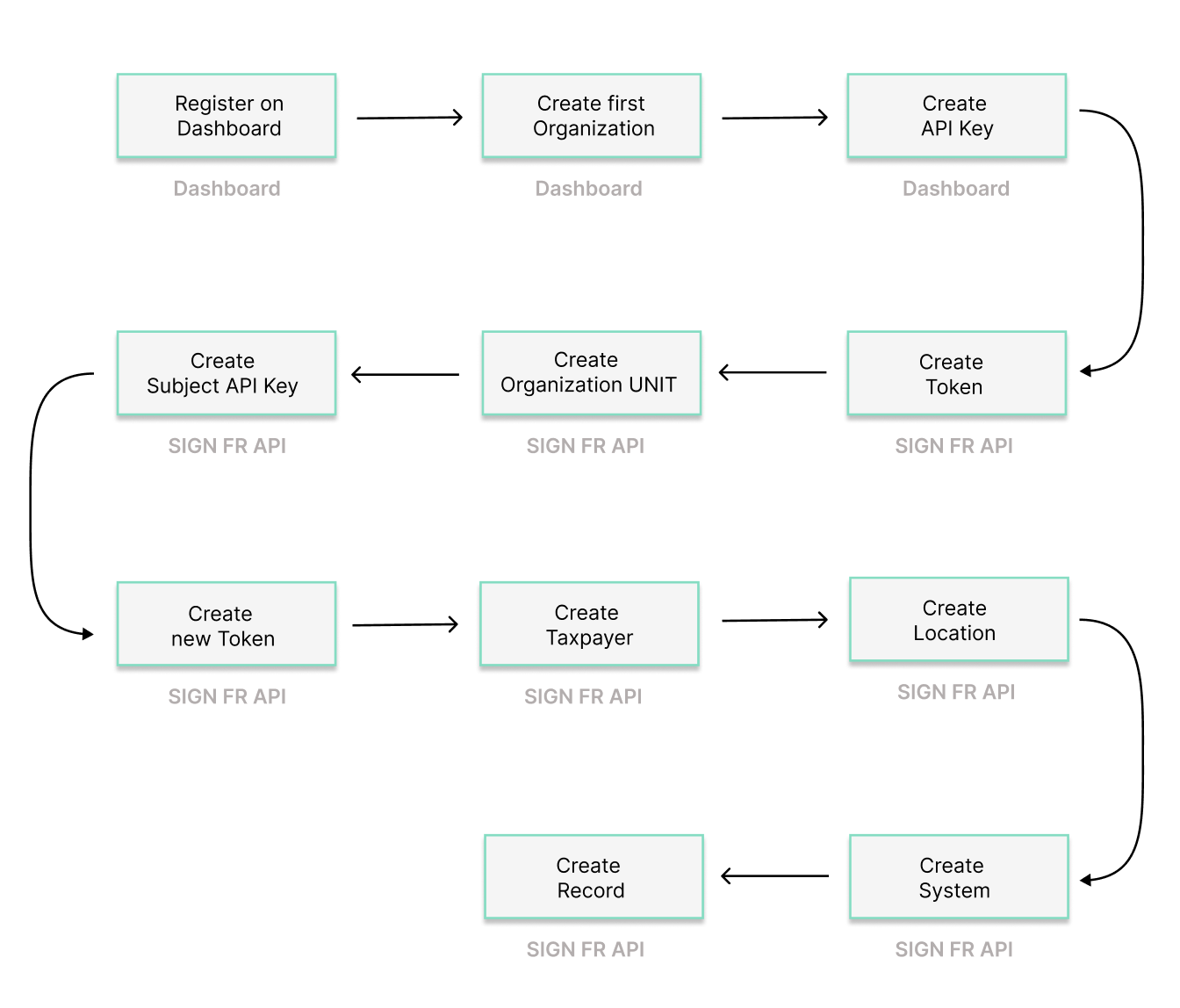
Step 1: Register on Dashboard
Begin by registering on the Dashboard.
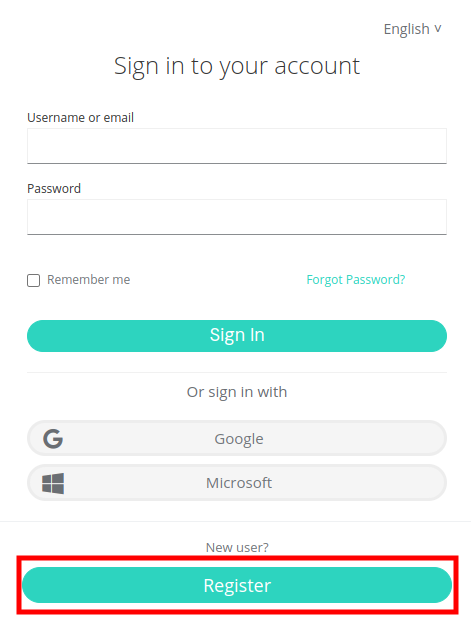
Creating a fiskaly account is the first step, after which you can proceed with setting up the first organizational structure for your business and generating your API Key.
Take a look at our video for a step-by-step explanation on how to set up your account and first organization.
Step 2: Create first Organization
Continue with creating your first organization using the Dashboard. In the SIGN IT API, this corresponds to an Organization of type GROUP and will represent the POS provider or retailer with its own POS system.
Step 3: Create API Key
The next step is to generate an API Key for your organization via the Dashboard. This API Key and Secret pair is required to create your Organization(s) of type UNIT (Step 5).
Note that API Keys generated in the TEST environment will create TEST resources, while those from the LIVE environment will create LIVE resources. For further details, refer to our article on TEST and LIVE environments.
Starting from the next step, you will be utilizing our SIGN FR API.
Step 4: MANAGEMENT - Create Token
Begin using the SIGN FR API through the createToken endpoint. You will need to create a token to authenticate for the next steps.
Step 5: MANAGEMENT - Create Organization UNIT
Continue with creating an Organization of type UNIT through the createOrganization endpoint. You will need to create one Organization UNIT for each of your taxpayer representations.
When creating an Organization of type UNIT, ensure it is associated to the Organization of type GROUP you previously created via the Dashboard. To do this, use the token generated from the API keys created for your Organization of type GROUP. This reflects the hierarchical structure where the Organization of type UNIT is nested under your Organization of type GROUP.
Step 6: MANAGEMENT - Create Subject API Key
Create a Subject of type API_KEY through the createSubject endpoint. The connection between the Organization of type UNIT and the API Key is established via the X-Scope-Identifier(using the id of the newly created Organization).
Step 7: MANAGEMENT - Create new Token
Next, create a token that will be used to create resources within the corresponding Organization of type UNIT.
Step 8: OPERATION - Create Taxpayer COMPANY or INDIVIDUAL
Now you’re ready to create the operational parts required for fiscalization in France. To do so, use the createTaxpayer endpoint to create the representation of a taxpayer as follows:
- You will need to to set the Taxpayer as a type
COMPANY(legal entity) orINDIVIDUAL(natural person). In both cases, thenameand theaddressmust be provided. - Within the French
fiscalizationinformation, the following taxpayer data must be provided:tax_id_number: French company identification number (SIREN number) issued by INSEE,credentials: French fiscalization credentials.
Once a Taxpayer of type COMPANY or INDIVIDUAL is created, its state is set to ACQUIRED by default. In order to be fully functional, the state has to be updated to COMMISSIONED using the updateTaxpayer endpoint.
Step 9: OPERATION - Create Location
For each operating business location, you need to create a Location of type BRANCH via the createLocation endpoint.
Once a Location of type BRANCH is created, its state is set to ACQUIRED by default. In order to proceed, you need to change the state to COMMISSIONED using the updateLocation endpoint.
Step 10: OPERATION - Create System
The createSystem endpoint allows you to create an abstraction of every device you use to issue receipts. This means that every cash register or point of sale needs to be provided as a new System in SIGN FR. For this, the System type FISCAL_DEVICE must be selected.
- A System will be connected to a specific, previously created
Locationof typeBRANCH. - For each device, you will need to provide product information such as MPN, brand, and the date of usage start, along with the software name and version installed on the device. This information ensures proper tracking of which device is performing fiscal transactions.
Once a System is created, its state is set to ACQUIRED by default. In order to create Records, its state must be updated to COMMISSIONED using the updateSystem endpoint.
Step 11: OPERATION - Create Record
Creating a Record in SIGN FR will in most cases require two subsequent calls:
- Part A)
INTENTION- right at the beginning of the sale process - Part B)
TRANSACTION- directly after the payment process
Transaction Operation
PART A) IntentionFor each business operation of type RECEIPT carried out in the cash register or POS, createRecord endpoint of the SIGN FR API will be used in two calls: the first to record the intention of starting a transaction, and the second to provide the transaction data.
A Record of type Intention will contain the following information:
- Association with a System that will carry out the transaction.
- Operation of type
Transaction: This means the operation the System intends to perform is recording a transaction.
The final step to issue a compliant receipt in France is to make another call to the createRecord endpoint, indicating a Record of type Transaction.
Any Transaction document will be associated to the internal identifier of an already created Record of type Intention, and can contain details for training purposes (documents issued in training or test mode).
The Transaction can be used to carry out one of the following operations in France:
-
RECEIPT: This operation contains all the required information for the creation of a Sales commercial document in France:- Document information such as number, activity code (if applicable), transaction date and total amounts of the document (including and excluding VAT)
- Information of each entry or line item sold in the operation:
- Identification of a Sale
- Description
- Indication if it’s a good or service
-
CORRECTION: This operation type is used to represent any return process carried out. It contains the same data as an operation of typeRECEIPT, and additionally:- Reference
idto an already created receipt (original transaction document)
- Reference
-
CANCELLATION: This operation is used to invalidate an entire transaction. For this, theidof a previously created record needs to be provided.
Additional Operations
In addition to the standard Intention → Transaction flow, SIGN FR supports the following operations:
- DUPLICATE
- EXPORT
- EVENT
These operations are created as a Record of type Intention (with operation DUPLICATE, EXPORT, or EVENT) and do not require a subsequent Transaction call. They enable additional POS activities to be signed, journaled, and archived beyond the standard transaction flow.
In all cases, once the record is properly created, the data will be signed, journaled, and archived to fulfill the three key fiscal obligations in France.