First steps
Register
To use fiskaly HUB, you first need to create your fiskaly HUB user by signing up with your email at fiskaly HUB. Registration is free of charge and allows you to test all available fiskaly services through a secure TEST environment.
After registering, you will receive an activation email. The activation link is only valid for 5 minutes!
First login
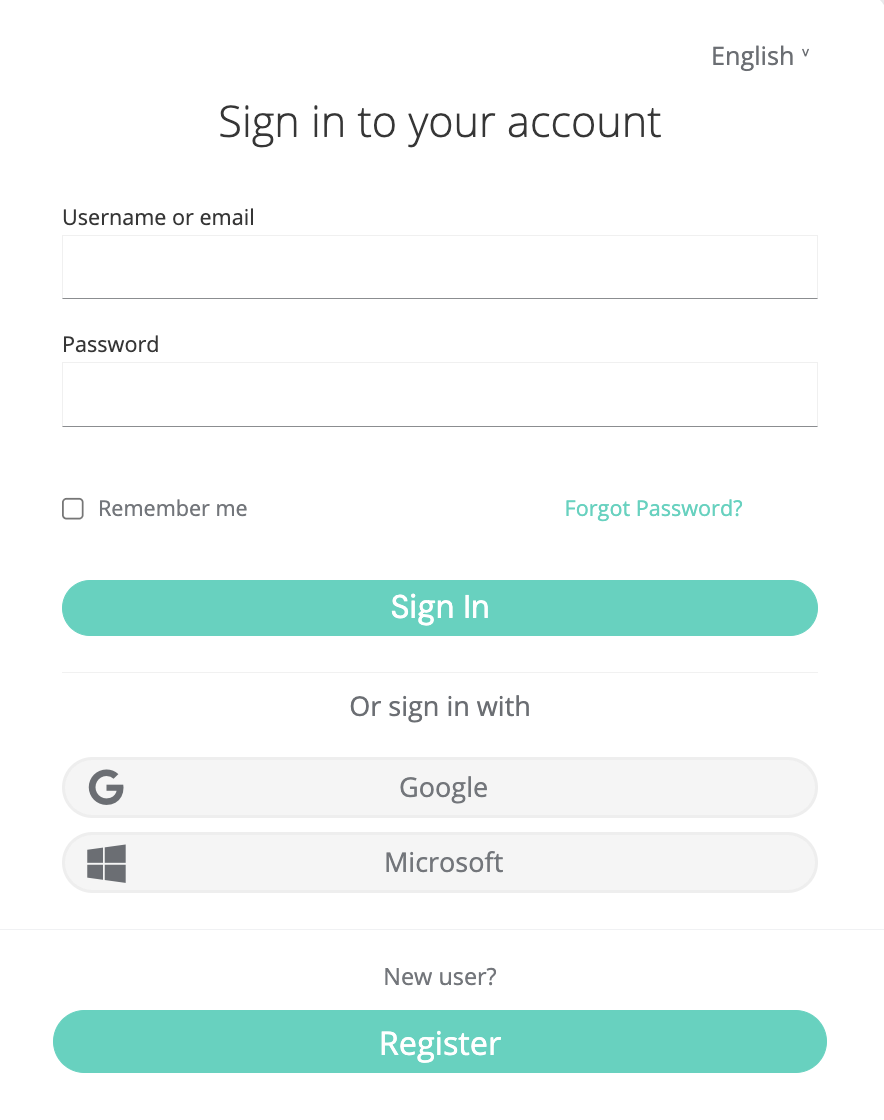
- You can login to fiskaly HUB with your existing Email address or alternatively Google or Microsoft account.
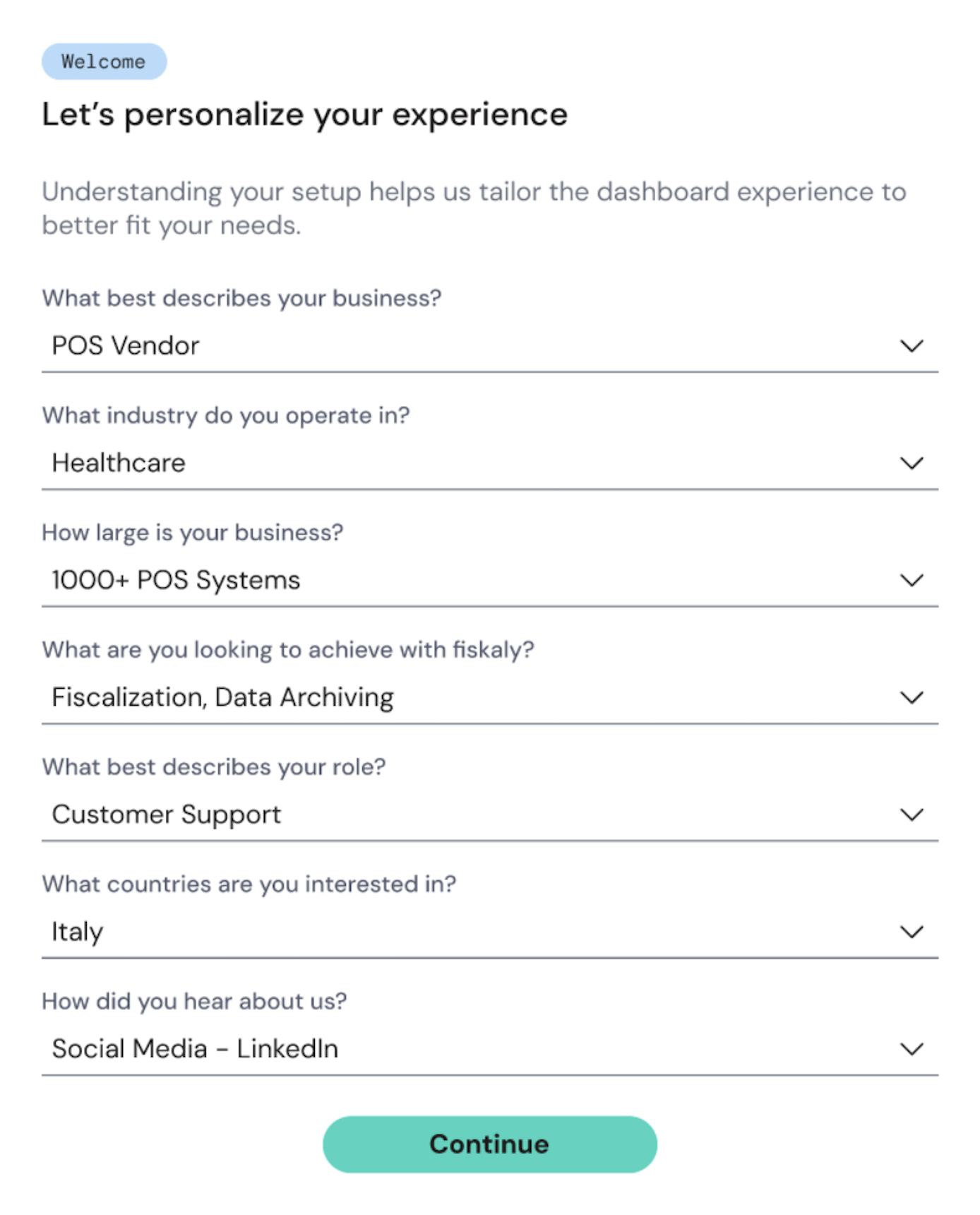
- You will be guided through a short onboarding questionnaire to personalize your experience.
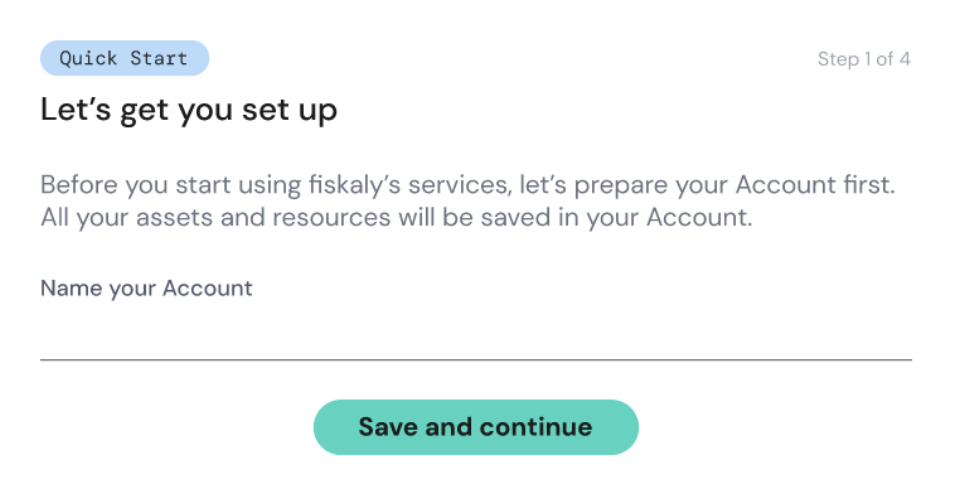
- A fiskaly Account represents your organization. If you have not yet been invited to an existing fiskaly HUB Account, you can create your own one.
- Provide a name for your fiskaly Account.
- Finally, after creating and naming your fiskaly Account you can create your first Group and first Unit(s).
A Group is an intermediate layer within an Account, used to organize multiple Units into logical clusters. A Unit represents an individual legal entity. Each Unit corresponds to a specific merchant.
We recommend creating Units via SIGN IT / SIGN FR or via the Management API, as this is the most reliable and scalable way to manage your customers programmatically.
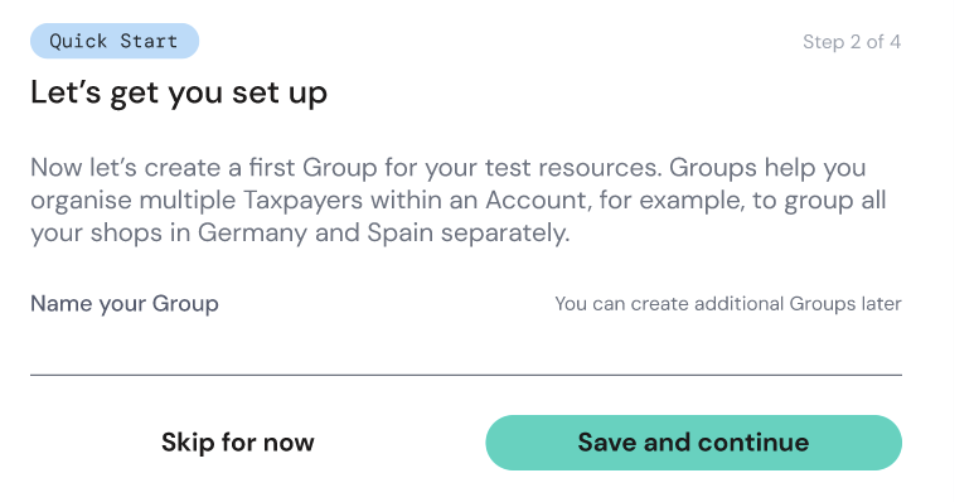
- Click "Save and Continue" to complete the initial setup.
Congratulations! You now have access to HUB!
Transition from Dashboard to HUB
This section is only relevant if you used the previous fiskaly Dashboard. New users can skip to “HUB Navigation”.
In the HUB’s interface, the organization structure has been clarified and unified across all solutions.
If you have used our previous Dashboard, the graphic below shows how the former naming and hierarchy map to the new structure in HUB, helping you understand how Accounts, Groups, and Units are now organized.
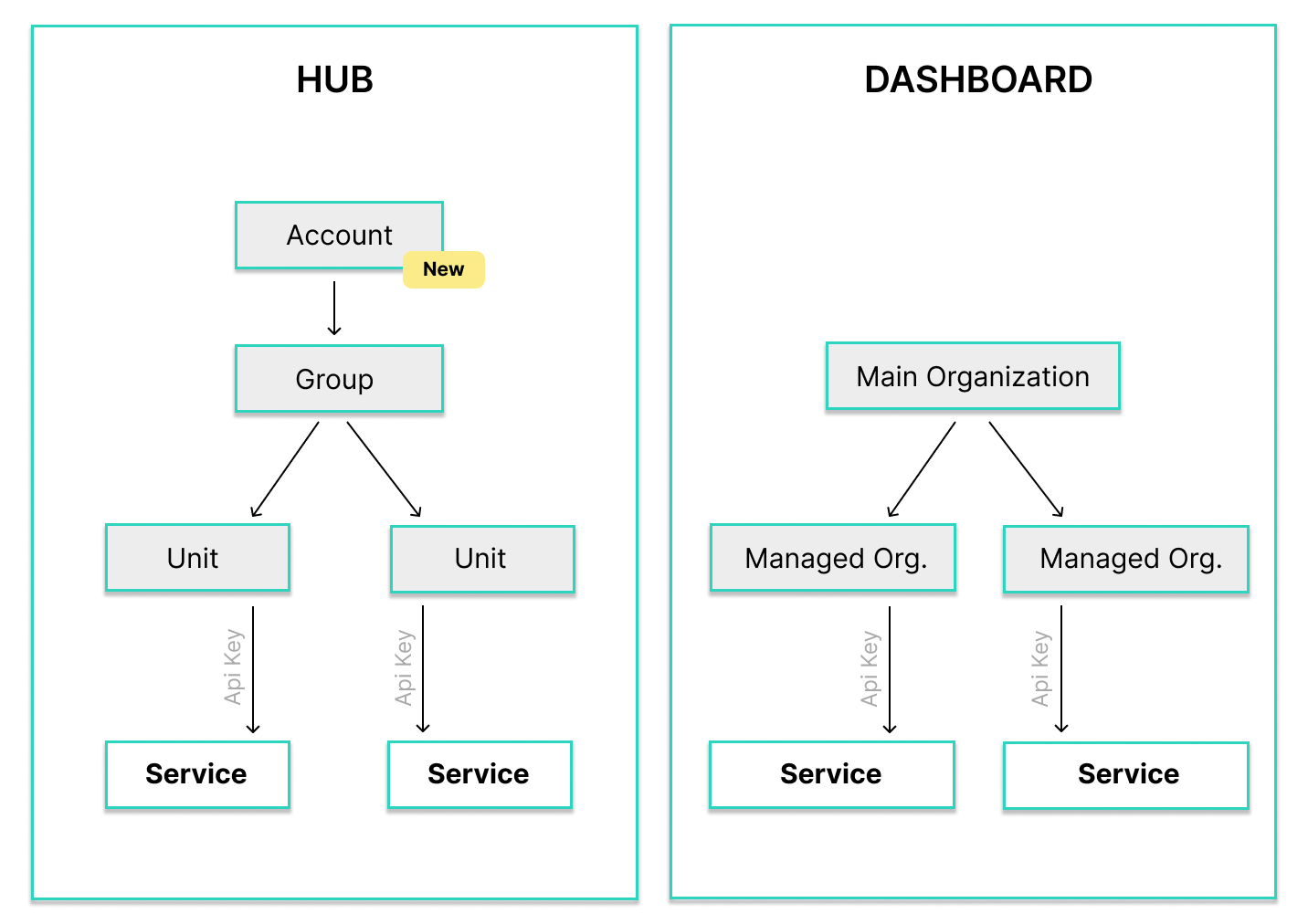
This terminology is specific to the HUB’s UI. Services are linked via API Keys at the Unit level, and this hierarchy is used consistently across HUB. API resource names and models may differ where required by each service’s API.
If your LIVE environment was already enabled in the Dashboard, all your existing LIVE resources will automatically appear in HUB. If you were working only in the TEST environment, you will need to import your TEST resources using the “Link TEST organizations” button.